Start it and pair it
Step 4 of the setup. The video covers this page and the download before it: from the Terms of Service to pairing, the report folder and autostart.
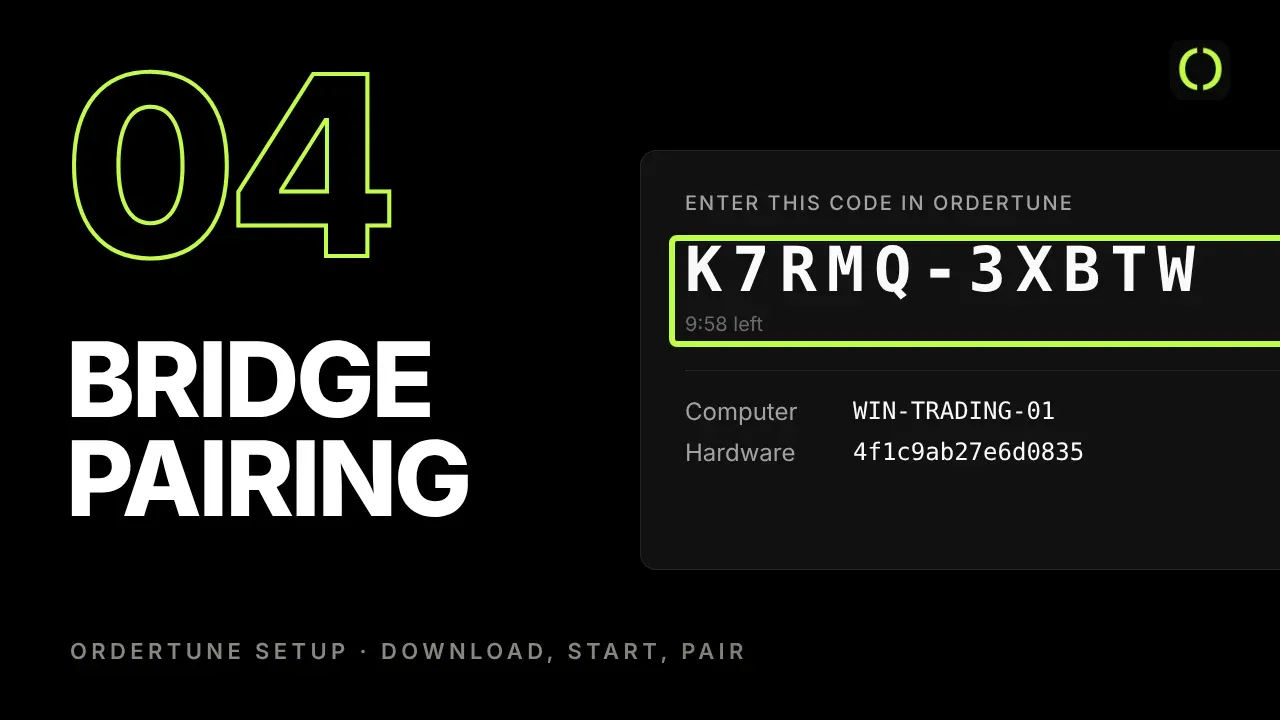
Hosted on YouTube. Only when you press play does your browser connect to YouTube (Google) and transmit your IP address. Open on YouTube instead
On Windows there is nothing to install: you put one file somewhere and start it. On a Linux desktop it is the same idea — unpack a folder, start the program, pair it in the browser. Only on a machine without a desktop does it become a service installation with its own user.
Start Trader Workstation first
Log in to Trader Workstation before you start the Bridge. Without it, the Bridge has nothing to connect to and stops with a message about the port.
Where the program goes
This is the question people get stuck on, so here are the answers up front.
Where may the folder be? Anywhere you can write to. Your Desktop is fine. There is no required location, and it does not belong in Program Files.
Do I need to create a new folder? No, but it is the tidier choice. The
Bridge writes its own bridge.env next to itself once you pair it, so give it
a place of its own rather than dropping it into your Downloads folder.
Something like Desktop\ordertune-bridge is exactly right.
May other files be in that folder? Yes. The Bridge only looks for its own
bridge.env beside itself and ignores everything else.
Does the name matter? Only for bridge.env, and you do not create that one
— the Bridge writes it. The executable itself can be renamed.
Where does it keep its working files? Not in that folder. Logs and the
record of which orders it has already sent live under
%LOCALAPPDATA%\Ordertune\Bridge, where a tidy-up will not sweep them away.
A README.txt there says the same thing.
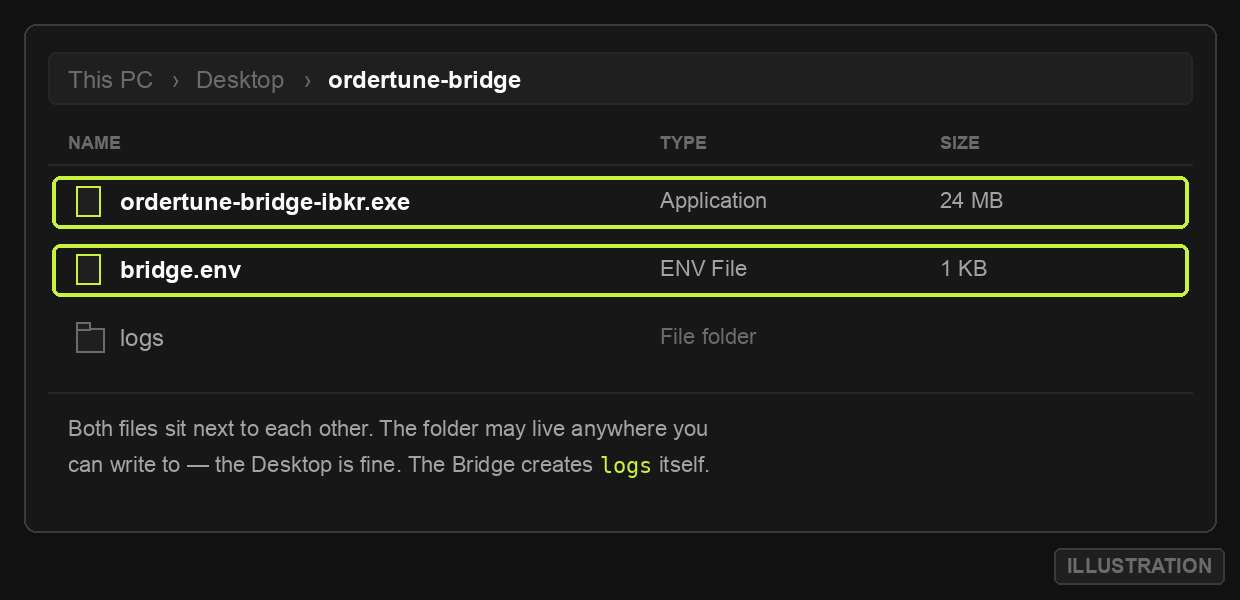
logs folder appears on its own.You choose, and the tidy choice is a folder of its own in your home directory.
| What | Where |
|---|---|
| The program | a folder of its own in your home directory, e.g. ~/ordertune-bridge/ |
bridge.env |
in that same folder, written when you pair |
| Logs and the record of sent orders | ~/.local/share/ordertune-bridge/ |
| Trade report archive | ~/IBExport/ |
All of it belongs to you — the same account that runs Trader Workstation. That is the whole reason this path is simpler than the server one: there is no second identity to keep in step.
Does the folder name matter? No. May other files be in it? Yes; the
Bridge only looks for its own bridge.env beside itself and ignores the rest.
You do not choose. The installer puts everything where the service unit expects it, and that is the point of having one.
| What | Where |
|---|---|
| The program | /opt/ordertune-bridge/ |
bridge.env |
/opt/ordertune-bridge/bridge.env, beside the program |
| Logs and the record of sent orders | /home/ordertune-bridge/.local/share/ordertune-bridge/ |
| Trade report archive | /home/ordertune-bridge/IBExport/ |
All of it belongs to the service user ordertune-bridge, which the installer
creates. That user owns the Bridge and should own Trader Workstation — see
Prepare TWS.
The first start
Double-click ordertune-bridge-ibkr.exe.
The first time, Windows shows a blue dialog that offers only one button, and that button is Don’t run. This is Defender SmartScreen reacting to an executable it has not seen before. It is not a finding about the file.
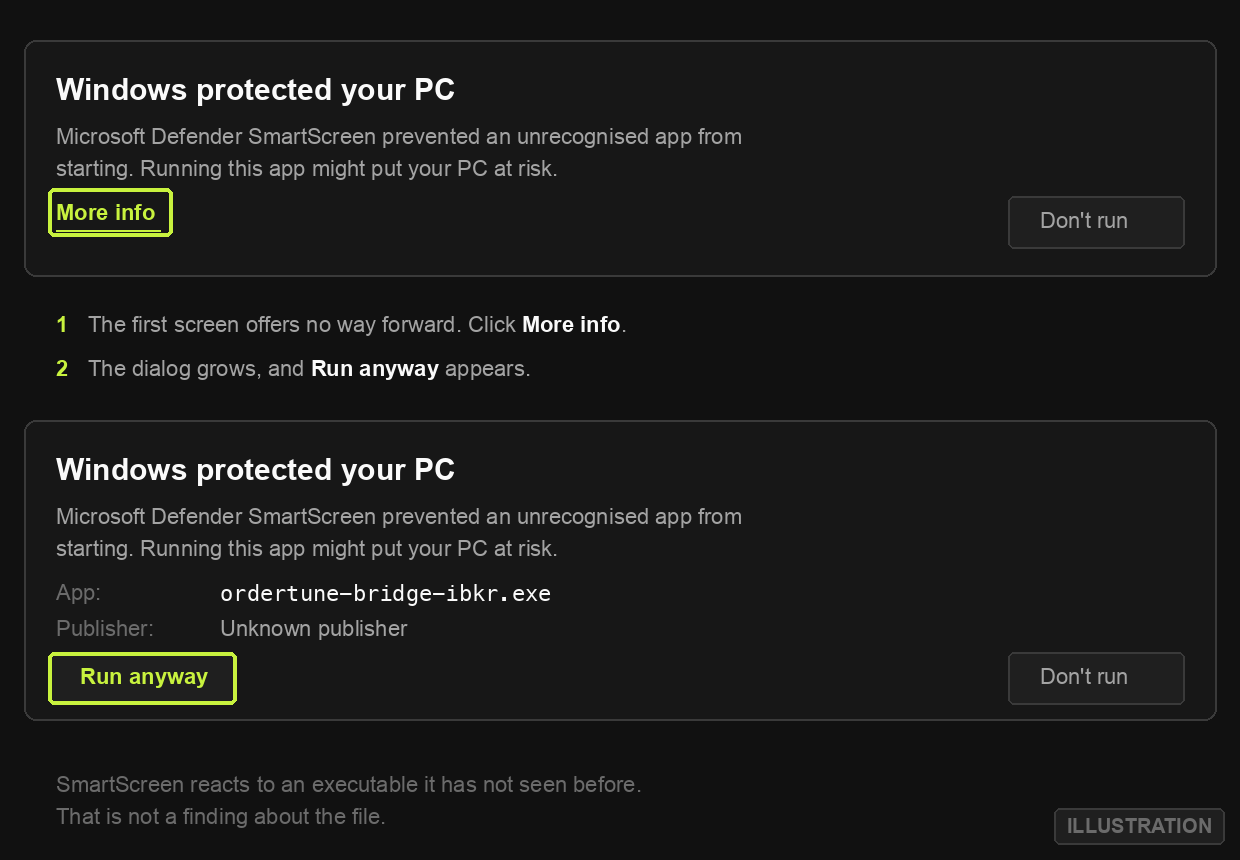
The dialog names an unknown publisher, and that is accurate — these builds are not signed yet. Windows will stop asking after the first run.
If you would rather check before you click: the Bridge is open source, and every release is built by a public GitHub Actions workflow from the tagged commit. You can read the source and the build log.
Without a terminal:
- Your browser saved the archive in Downloads. Right-click it and choose Extract Here.
- Move the new folder
ordertune-bridge-ibkrinto your home folder. - The Bridge program inside is already executable. To check: right-click it, Properties, Permissions: Allow this file to run as a program is ticked. If not, tick it.
- Double-click the Bridge. If your desktop does not start it that way,
right-click an empty spot in the folder, choose Open Terminal Here, and
type
./ordertune-bridge-ibkr.
In a terminal, with the checksum check (archive and .sha256 file in
~/Downloads):
mkdir -p ~/ordertune-bridge && cd ~/ordertune-bridge
mv ~/Downloads/ordertune-bridge-ibkr-linux-x86_64.tar.gz* .

echo "$(cat ordertune-bridge-ibkr-linux-x86_64.tar.gz.sha256)  ordertune-bridge-ibkr-linux-x86_64.tar.gz" | sha256sum -c

tar -xzf ordertune-bridge-ibkr-linux-x86_64.tar.gz --strip-components=1 ordertune-bridge-ibkr
rm ordertune-bridge-ibkr-linux-x86_64.tar.gz*

./ordertune-bridge-ibkr--strip-components=1 lifts the contents of the program folder up one level,
so you end up with ordertune-bridge-ibkr and _internal directly in
~/ordertune-bridge.
The checksum line has to end in OK. If it says FAILED, do not start the
file: download it again.
Nothing pops up and nothing has to be clicked through; there is no equivalent of the warning Windows shows.
Run the script you downloaded:
chmod +x ordertune-bridge-ibkr-linux-installer.sh
sudo ./ordertune-bridge-ibkr-linux-installer.sh
It does seven things, in this order, and stops at the first one that fails:
- Downloads the program archive from the same release.
- Fetches the SHA-256 and verifies it. A mismatch aborts, and nothing is left
behind in
/opt. - Unpacks to
/opt/ordertune-bridge. - Creates the service user
ordertune-bridgewith a home directory. - Creates the report folder
/home/ordertune-bridge/IBExport. - Installs the systemd unit.
- Hands over to pairing — see below.
Nothing pops up and nothing has to be clicked through. If the checksum does not match, the script says so in plain words and installs nothing.
Pair it with your account
Pairing connects this machine to your Ordertune account. The Bridge shows a ten-character code; you type it into the Broker tab and confirm. The token itself never passes through your hands.
The first time it starts, the Bridge has no credentials — so a setup window opens in your browser and walks you through five steps. The first is the one that connects it to you.
1 — Connect this machine to Ordertune
Click Get a pairing code. The window shows a ten-character code, like
K7RMQ-3XBTW, and a link straight to your Broker tab.
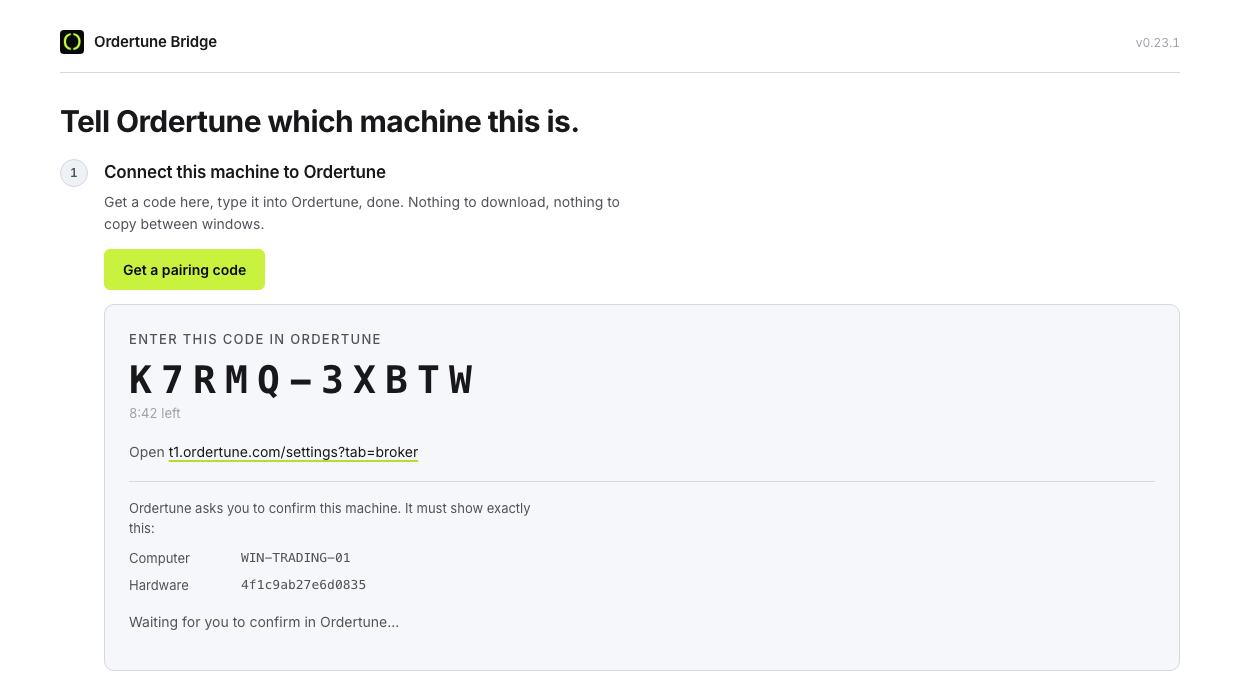
Open that link, type the code into Pair a bridge with a code, and click Check code.
2 to 5 — Trader Workstation
The remaining steps look for Trader Workstation:
- Find TWS — click Search for TWS. It probes the standard IBKR ports and offers the one that answers: logged in with your paper account that is usually 7497, with your live account most likely 7496. Click Use this. The wrong port is the single most common mistake, and the window takes it off your hands.
- Check the port — a real connection attempt, not a guess.
- Check the credentials — a real handshake against Ordertune.
- Hand the folder to TWS — the exact folder the Bridge reads its trade reports from. See the report folder below.
As soon as the Bridge has what it needs, it starts on its own and the same window turns into the Cockpit.
Exactly like Windows, because it is the same thing. The first time it starts, the Bridge has no credentials, so it opens a setup window in your browser and walks you through five steps.
1 — Connect this machine to Ordertune
Click Get a pairing code. The window shows a ten-character code and a link straight to your Broker tab. Open it, type the code into Pair a bridge with a code, and click Check code.
2 to 5 — Trader Workstation
The remaining steps are the same as on Windows: Search for TWS and Use this for the port that answers, a real connection, a real handshake against Ordertune, and the folder to hand to Trader Workstation. As soon as the Bridge has what it needs, it starts on its own and the same window turns into the Cockpit.
The installer hands over to pairing at the end of its run, so normally you do not type this yourself. It looks like this:
  ────────────────────────────────────────────────────────────────────
    Pair this Bridge with your Ordertune account
  ────────────────────────────────────────────────────────────────────

    1. Open   https://interactive.ordertune.com/settings?tab=broker
    2. Go to  Settings -> Broker -> Pair a Bridge
    3. Enter this code:

          K7RMQ-3XBTW

       It expires in 10 minutes.

    Check that interactive.ordertune.com shows the same machine before you confirm:
       host        vps-trading-01
       fingerprint 4f1c9ab27e6d0835

    Waiting. Press Ctrl+C to stop.
Open that link on whatever computer you are actually sitting at, type the code into Pair a bridge with a code, and click Check code. The terminal picks it up within a few seconds and carries on by itself.
There is no browser window and no Cockpit on a server, and nothing is
missing because of it. The Cockpit only ever read things out; the same
information is in the log and in systemctl status.
Whichever way you got here, Ordertune now asks you to confirm — and shows you which machine is asking:
| Computer | the name of the machine, e.g. WIN-TRADING-01 |
| Hardware | a sixteen-character fingerprint, e.g. 4f1c9ab27e6d0835 |
Click Yes, pair this machine. Within a few seconds the Bridge picks up its
credentials, writes its own bridge.env, and carries on. Nothing to download,
nothing to copy.
The code is valid for ten minutes. If it runs out, ask for another — codes are single use and cost nothing.
The report folder
The Bridge shows the exact folder it reads: in step 5 of the setup window, and later under Settings in the Cockpit. Trader Workstation must write to exactly this folder: Global Configuration → Export Reports → Export directory, as set in Prepare TWS. Compare both character by character.
| Default | |
|---|---|
| Windows | C:\IBExport |
| Linux desktop | ~/IBExport |
| Linux server | /home/ordertune-bridge/IBExport |
To change the folder, edit TWS_EXPORT_DIR in bridge.env. It takes effect
the next time the Bridge starts. The Bridge misses a fill? Compare this path
first.
What you should see
Once it is running, the Bridge opens a local window — the Cockpit. It shows one sentence about the state and four lamps: Trader Workstation, Ordertune, account, order access.
The Cockpit is worth a look even when everything works, because it catches the fault you would otherwise notice on your first real order: if Read-Only API is still switched on in Trader Workstation, everything looks healthy — the connection holds, heartbeats run — and every order would be refused. The Cockpit says so at startup.
The log lives under %LOCALAPPDATA%\Ordertune\Bridge\logs\bridge.log. It
rotates daily and is kept for 30 days.
The Cockpit — the same window the setup turned into. One sentence about the state and four lamps: Trader Workstation, Ordertune, account, order access.
It is worth a look even when everything works, because it catches the fault you would otherwise meet on your first real order: if Read-Only API is still switched on in Trader Workstation, everything looks healthy — the connection holds, heartbeats run — and every order would be refused. The Cockpit says so at startup.
The log lives under ~/.local/share/ordertune-bridge/logs/bridge.log. It
rotates daily and is kept for 30 days.
The service is running. Ask it:
systemctl status ordertune-bridge
journalctl -u ordertune-bridge -f
The same log also goes to a file, under
/home/ordertune-bridge/.local/share/ordertune-bridge/logs/bridge.log. It
rotates daily and is kept for 30 days.
sudo -u ordertune-bridge tail -f \
  /home/ordertune-bridge/.local/share/ordertune-bridge/logs/bridge.log
Watch for the line about order access in particular. If Read-Only API is still switched on in Trader Workstation, everything else looks healthy — the connection holds, heartbeats run — and every order would be refused. The Bridge reports that at startup rather than leaving you to find it on your first real order.
In the log, a good start looks like this:
INFO  Log file: .../logs/bridge.log
INFO  ordertune-bridge-ibkr v0.31.0 starting up
INFO  Handshake successful — Bridge is active.
INFO  TWS trade reports: reading .../IBExport.
After that, a heartbeat every 60 seconds.
If it does not start
The Bridge does not fail silently. It writes a plain-text block that says what happened, what to do, where the log file is, and a fixed reference code:
========================================================================
  BRIDGE COULD NOT START
========================================================================

  WHAT HAPPENED
  Nothing answers on port 7497, but something does elsewhere.

  bridge.env says:  IBKR_TWS_PORT=7497
  Answering ports:  7496 (TWS live)
  ...
  Reference: tws_wrong_port
========================================================================Since version 0.26.0 the Bridge is built without a console window, so there is nothing to read behind the program. Instead you get a message box with the same text, and the full block is in the log file.
If you started it from a terminal, the block is right there. If you double-clicked, it is in the log:
tail -n 50 ~/.local/share/ordertune-bridge/logs/bridge.logNo dialog appears — that is a Windows mechanism and has no counterpart here.
It goes to the journal and to the log file. If the service will not come up:
journalctl -u ordertune-bridge -n 50 --no-pagerTake the reference code — tws_wrong_port in this example — to Troubleshooting. Every code has an entry there.
Leaving it running
The Bridge only works while it runs, and Trader Workstation only works while it is logged in. Set up autostart once, and both start when you sign in to the machine.
Autostart with the Startup folder (once):
- Press Win + R, type
shell:startup, and press Enter. Your Startup folder opens. Everything in it starts when you sign in. - Trader Workstation: right-click its desktop icon, Copy. Right-click inside the Startup folder, Paste.
- Bridge: right-click
ordertune-bridge-ibkr.exein its folder, Copy. In the Startup folder: right-click, Paste shortcut (on newer Windows under Show more options). A shortcut, not the program itself: the Bridge stays next to its settings file.
After a reboot: connect by Remote Desktop once. Windows signs you in and both programs start. Log in to Trader Workstation; the Bridge finds it on its own.
The Bridge runs in your desktop session, exactly as it does on Windows, and stops when you log out. That is the right shape here: Trader Workstation hangs off the same session, so neither outlives the other.
Autostart (once, Xfce shown):
- Settings → Session and Startup, tab Application Autostart, Add.
- Name:
Ordertune Bridge. Command: click the folder icon and pick the Bridge program. Trigger: on login. OK. - Trader Workstation: copy its desktop icon. In the file manager press
Ctrl + L, type
.config/autostart, and paste it there.
Other desktops have the same setting under a similar name, for example Startup Applications.
After a reboot: sign in to your desktop, log in to Trader Workstation, and the Bridge follows. When you leave, close the remote desktop window. Do not log out.
Already done. The installer set up a systemd unit and started it, so the
Bridge comes back after a reboot without anyone signing in. --headless is
already in the unit — there is no Cockpit to suppress and nobody to prompt.
The commands you will actually use:
systemctl status ordertune-bridge     # is it running
sudo systemctl restart ordertune-bridge
sudo systemctl stop ordertune-bridge
journalctl -u ordertune-bridge -f     # follow the log
The unit restarts the Bridge if it crashes, and gives up after five failures in five minutes. That is deliberate: a crash loop should become visible as a missing heartbeat in Ordertune rather than churn quietly forever.
Next: confirm the connection.